


A simple programming environment setup
- SimpleSyntax

- Feb 5, 2023
- 2 min read
Before attempting to write any code, I am recommending using a text editor which can be used as a Python IDE (integrated development environment). It is called Sublime Text and can be found here https://www.sublimetext.com
Secondly, the Python programming language will need to be installed also. If you use a Mac or Linux, you will likely already have it installed, but it will also likely need to be updated. Go to this link https://www.python.org/downloads/ to download and install the latest version of Python. It is generally good advice to stay up to date on the latest version of any program language. Finally, Sublime Text will need to be setup for Python 3 first. This is a one time setup, so you only need to do it once as Sublime Text will use the older Python 2 version, but we want to make it so it will use the latest Python 3 version. A simple, easy to follow video by VersaFlow can be found here https://www.youtube.com/watch?v=IprbE2C_rsE instructing you how to do so. Alternatively, there is another video here by Carberra that will show how to set it up so Sublime Text will always use the latest Python version you have installed by default https://www.youtube.com/watch?v=TNpev_BIDvQ
A first simple program
To test and see if Sublime Text is working correctly after following instructions above, open the program, select "File", then "New File" (you can also press CTRL+N to create a new file). Then type in the following code print("Hello World!")
Remember to type it exactly as shown. Syntax when programming is important. A single character out of place can break code entirely.

Now save your file by selecting "File", then "Save As...", or you can press CTRL+S. Name the file helloworld.py. It is important that you add the .py at the end of your file name so Sublime Text recognizes it as a Python program.

Once your file has been saved, press CTRL+B in Sublime Text to run your program (or you can select "Tools", then "Build" from the main menu, but CTRL+B is much faster). Hopefully if everything is done right, the console at the bottom should display the message "Hello World!". If it does not, try check that the code is written correctly. It could be a quotation mark missing, a missing bracket, or print is spelt with a capital P instead of a lowercase p.
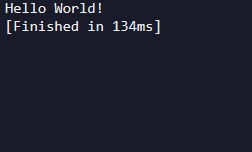
"Hello World" is often considered to be good luck by programmers as the first program anyone should create, hence why this is being done first. The next post will discuss a little about data types and variables. TIP: If you want to change the Sublime Text colour scheme (often a darker colour scheme is easier on your eyes over long periods as opposed to bright, stark white), you can select "preferences", then "Select Color Scheme..." from the menu. Try to leave any other sensitive settings or setting you are not knowledgeable about for now.
Comments